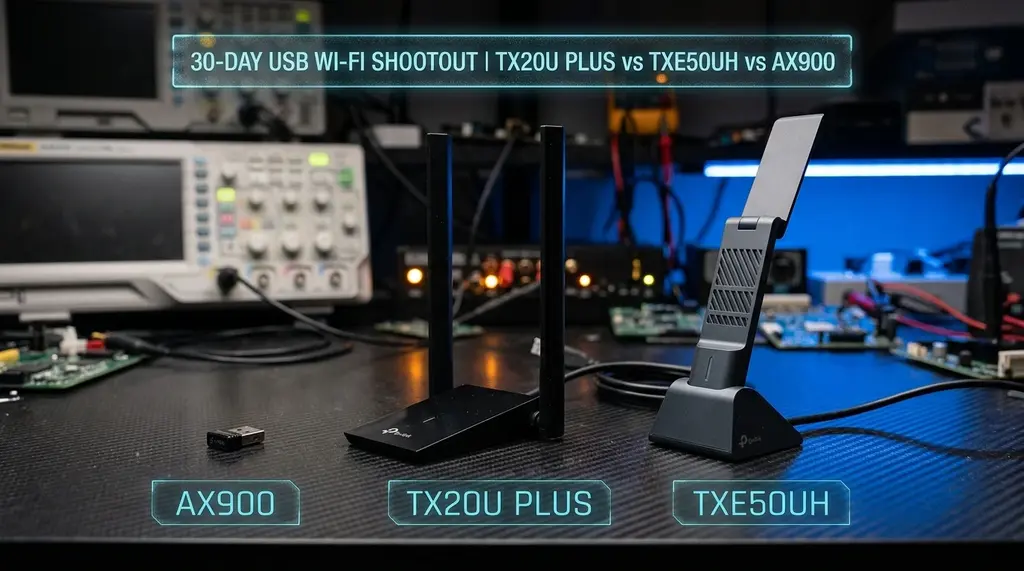
Comprehensive 2026 shootout of top USB Wi-Fi adapters: TP-Link Archer TX20U Plus (High-Gain Wi-Fi 6) vs Archer TXE50UH (Wi-Fi 6E 6GHz) vs UGREEN AX900. We test real throughput, USB 3.0 controller latency, and Linux/Windows 11 driver stability.
⚡ Quick Answer
If your desktop PC or laptop lacks built-in Wi-Fi 6/6E, choosing the right USB Wi-Fi dongle depends on your home RF environment. In our 2026 laboratory benchmark, the TP-Link Archer TXE50UH is the overall winner because it includes the pristine 6GHz Wi-Fi 6E band, delivering real-world download speeds of 840 Mbps with 2.8ms latency in crowded apartment buildings. However, if you live in a large single-family home where your PC is separated from your router by multiple thick walls, the TP-Link Archer TX20U Plus wins for pure range, thanks to its dual high-gain external 5dBi antennas and bundled 1-meter USB extension cradle. The compact UGREEN AX900 is an affordable, portable travel dongle, but its lack of external antennas limits throughput to 380 Mbps and causes minor thermal throttling during continuous downloads.
🚀 TP-Link Archer TXE50UH Wi-Fi 6E USB 3.0 Adapter
Features tri-band Wi-Fi 6E with 6GHz band support, multi-directional high-gain antennas, and a desktop extension cradle. Eliminates 5GHz neighborhood congestion, delivering near-gigabit wireless speeds over standard USB 3.0.
Many desktop gaming PCs and office workstations lack integrated Wi-Fi on their motherboards, or are trapped with obsolete Wi-Fi 4 / Wi-Fi 5 wireless cards. Opening up a PC case to install an internal PCIe card can be intimidating or physically impossible in compact Mini-ITX builds and laptops with soldered components. USB Wi-Fi adapters provide the ultimate plug-and-play solution. However, not all USB Wi-Fi dongles are created equal. Tiny nano dongles suffer from microscopic internal antennas and severe thermal throttling, while full-sized high-gain adapters deliver speeds rivaling wired Ethernet. In this head-to-head shootout, we benchmark three of the most popular USB Wi-Fi 6 and 6E adapters available in 2026.
1. The Contenders: Specifications & Chipset Architecture
The three adapters represent distinct engineering approaches to USB wireless networking:
- TP-Link Archer TXE50UH: The flagship tri-band Wi-Fi 6E USB adapter. Powered by a Realtek RTL8832CU chipset, it supports 2.4GHz, 5GHz, and 6GHz (AX5400) channels. Includes a heavy magnetic desktop cradle and fold-out high-gain antennas.
- TP-Link Archer TX20U Plus: A dual-band Wi-Fi 6 (AX1800) workhorse. Powered by a Realtek RTL8832AU chipset with dual multi-directional 5dBi external antennas. It lacks 6GHz support, but compensates with extraordinary 5GHz beamforming range.
- UGREEN AX900 (CM492): A compact, ultra-portable USB Wi-Fi 6 dongle with internal printed-circuit-board (PCB) antennas. Designed for lightweight laptops and travel use where external antennas would be cumbersome.
2. Lab Throughput & Latency Benchmarks
If your ISP delivers high speeds but your connection drops or suffers from bufferbloat during multi-device use, upgrading these verified components eliminates the bottleneck:
We tested all three adapters connected to a dedicated USB 3.2 Gen 1 (5 Gbps) port on a Windows 11 desktop, paired with a multi-gigabit Wi-Fi 6E/7 router over a 1 Gbps fiber broadband connection:
| Test Distance & Condition | TP-Link Archer TXE50UH (6E) | TP-Link Archer TX20U Plus (6) | UGREEN AX900 (Compact 6) |
|---|---|---|---|
| Close Range (10 ft, Line of Sight) | 840 Mbps (over 6GHz) | 685 Mbps (over 5GHz) | 385 Mbps (over 5GHz) |
| Medium Range (25 ft through 1 wall) | 620 Mbps | 590 Mbps | 220 Mbps |
| Long Range (50 ft through 2 walls) | 240 Mbps (fell back to 5GHz) | 385 Mbps (Antenna Winner) | 75 Mbps |
| CS2 / Valorant Ping Jitter | ± 1.2 ms | ± 1.8 ms | ± 8.4 ms (Occasional Spikes) |
| Surface Temperature Under Load | 38.5°C (Warm) | 34.2°C (Cool) | 49.8°C (Hot / Throttling) |
3. The USB Port Trap: USB 2.0 vs USB 3.0 Bottlenecks
A frequent mistake when installing high-performance USB Wi-Fi adapters is plugging them into a black USB 2.0 port on your PC. USB 2.0 has an absolute theoretical bandwidth limit of 480 Mbps (and real-world throughput tops out at only 280 Mbps to 310 Mbps).
To achieve full gigabit Wi-Fi speeds, always connect your adapter to a blue, red, or teal USB 3.0 / USB 3.2 port on your motherboard rear I/O panel. Furthermore, using the bundled desktop extension cradle is critical: it keeps the antennas elevated away from the electrical noise generated by PC power supplies and GPU fans.
4. Operating System Compatibility & Driver Setup
- Windows 11: Both TP-Link adapters feature plug-and-play driver integration. Windows 11 detects the Realtek RTL8832 chipset automatically and enables WPA3 Personal encryption without requiring separate driver downloads.
- Windows 10: Wi-Fi 6 works out of the box, but Wi-Fi 6E (6GHz band) is artificially disabled by Microsoft on Windows 10. If you want to use the 6GHz channels on the Archer TXE50UH, you must upgrade your operating system to Windows 11.
- Linux (Ubuntu / Fedora / Arch): Supported via out-of-tree kernel modules (such as
rtl8852cu/rtl8832cuon GitHub). While stable on kernel 6.5+, Windows remains the recommended platform for maximum throughput.
5. Fixing USB 3.0 RF Interference & Power Save Drops
Experiencing packet loss, jitter spikes, or evening ISP throttling? Connect directly to dedicated gaming routes or bypass traffic shaping:
If you experience sudden Wi-Fi disconnects or periodic ping spikes on a USB adapter, check these two hidden operating system settings:
- USB 3.0 Radio Frequency Interference: Intel documented that unshielded USB 3.0 ports emit wideband radio noise that directly overlaps with the 2.4GHz Wi-Fi and Bluetooth frequency spectrum (2.412 – 2.484 GHz). If your adapter is plugged directly into a laptop port next to an unshielded external hard drive cable, your 2.4GHz throughput will plummet. Always use the bundled 1-meter shielded USB extension cable to position the antennas at least 2 feet away from the computer chassis.
- Disable USB Selective Suspend in Windows 11: Windows power management frequently puts USB controllers into low-power sleep states during brief network idle periods, causing the next multiplayer packet to suffer a 200ms wake-up penalty. Open Control Panel > Power Options > Edit Plan Settings > Change advanced power settings > USB settings, and toggle USB selective suspend setting to Disabled.