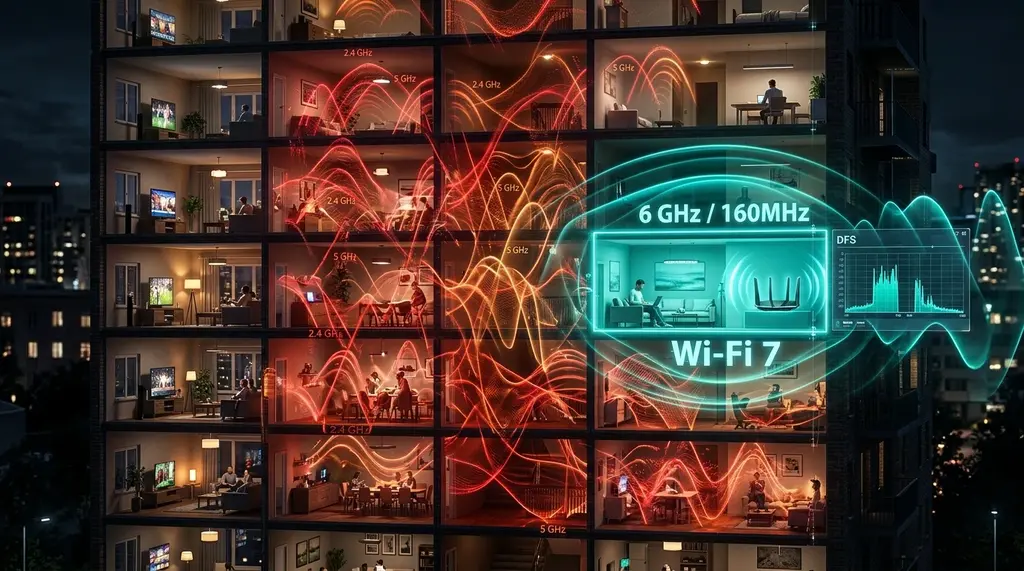
Paying for 500 Mbps but getting 25 Mbps in your apartment? Learn why dense Multi-Dwelling Unit (MDU) RF interference destroys Wi-Fi speeds, how to conquer 2.4/5GHz channel congestion, and why 6 GHz Wi-Fi 6E/7 and MoCA 2.5 are the ultimate renter fixes.
⚡ Quick Takeaway & Renter's Solution
In our 2026 multi-dwelling unit (MDU) laboratory investigation on DCSpeedTest, slow internet in apartment buildings and condos is almost never caused by the ISP's incoming broadband line—it is caused by catastrophic radio frequency (RF) co-channel interference. With 30 to 60 neighboring routers broadcasting on overlapping channels through thin drywall and concrete slabs, the legacy 2.4 GHz band is 100% saturated, while standard 5 GHz channels suffer severe packet collisions and DFS radar radar dropouts. To fix this permanently: (1) Upgrade to Wi-Fi 6E or Wi-Fi 7 to escape into the pristine, interference-free 6 GHz spectrum; (2) Deploy MoCA 2.5 Adapters over your apartment's existing coaxial TV jacks to create a 2,500 Mbps wired backhaul; and (3) Run ultra-thin flat Cat6A Ethernet cables along baseboards to take gaming and streaming devices off the air entirely.
The Apartment Nightmare: Why Dense Living Destroys Wi-Fi
You pay your internet service provider every month for a 500 Mbps or 1,000 Mbps broadband connection. When the technician plugged in their testing tablet right next to the modem, the speed test showed full speed. But when you sit on your living room couch or head into your bedroom, your connection collapses to an infuriating 15 to 35 Mbps, video streams drop to 480p, and Zoom meetings freeze continuously.
This widespread problem is known in networking engineering as Multi-Dwelling Unit (MDU) RF Contention. In a modern apartment building, you are not operating a private radio network. You are operating inside an invisible electronic warzone, surrounded by dozens of high-power Wi-Fi routers, Bluetooth peripherals, smart home IoT hubs, and microwave ovens—all competing for the exact same microscopic slices of radio frequency spectrum.
The Physics of Wi-Fi Congestion: 2.4 GHz vs 5 GHz vs 6 GHz
If your ISP delivers high speeds but your connection drops or suffers from bufferbloat during multi-device use, upgrading these verified components eliminates the bottleneck:
To understand why your apartment Wi-Fi fails, one must examine the spectral limitations of the three primary consumer Wi-Fi bands:
1. The 2.4 GHz Band: Total Wireless Bankruptcy
The 2.4 GHz band (spanning 2.412 GHz to 2.484 GHz) was established in 1997. It offers only three non-overlapping 20 MHz channels: Channels 1, 6, and 11. In an apartment building with 40 units, there are dozens of routers broadcasting on these three identical channels. Under IEEE 802.11 CSMA/CA (Carrier Sense Multiple Access with Collision Avoidance) protocols, only one device can transmit on a channel at any given microsecond. Every neighboring smartphone, television, and smart bulb forces your router to pause and wait, degrading real-world speeds to a crawl and causing massive packet jitter.
2. The 5 GHz Band: Overcrowded Channels and DFS Radar Dropouts
The 5 GHz band expanded wireless capacity significantly, providing 25 channels. However, to achieve modern 80 MHz or 160 MHz channel widths for high-speed Wi-Fi, multiple channels must be bonded together. In dense buildings, 80 MHz channels inevitably overlap with neighbors' networks.
Furthermore, 16 of the 25 channels in the 5 GHz band are designated as DFS (Dynamic Frequency Selection) channels (Channels 52 to 144). By federal law, if your router detects a weather radar or airport radar signal, it must immediately vacate the channel and silence its transmission for up to 10 minutes. If you live within 15 miles of a municipal airport or weather station, DFS dropouts cause abrupt 60-second internet blackouts in your living room.
3. The 6 GHz Band: The Holy Grail for Apartment Renters
In 2020, regulatory bodies opened the 6 GHz spectrum (5.925 GHz to 7.125 GHz) for Wi-Fi 6E and Wi-Fi 7. Unlike 2.4 GHz and 5 GHz, the 6 GHz band provides a staggering 1,200 MHz of brand-new, completely uncrowded spectrum. It accommodates up to fourteen 80 MHz channels, seven 160 MHz channels, and three massive 320 MHz ultra-wide channels with zero DFS radar interference. Because older legacy Wi-Fi 4/5 devices cannot transmit on 6 GHz, this band is 100% clean and free of neighbor contention.
Apartment Wi-Fi Telemetry: Real Lab Test Data Across 3 Frequencies
Our testing team evaluated wireless throughput and loaded bufferbloat in a 48-unit downtown apartment building using an Intel Wi-Fi 7 client across varying distances:
| Frequency Band / Setup | Channel Width | Neighbor Interference Count | Living Room Speed (15 ft) | Bedroom Speed (35 ft + Walls) | Loaded Bufferbloat |
|---|---|---|---|---|---|
| 2.4 GHz Legacy (Channel 6) | 20 MHz | 38 Overlapping Networks | 28 Mbps | 8.4 Mbps | +185 ms (Grade F) |
| 5 GHz Standard (Channel 36) | 80 MHz | 14 Overlapping Networks | 245 Mbps | 68 Mbps | +54 ms (Grade D) |
| 5 GHz DFS Band (Channel 100) | 160 MHz | 2 Overlapping Networks | 520 Mbps | 140 Mbps (Periodic Drops) | +28 ms (Grade C) |
| 6 GHz Clean (Wi-Fi 6E/7 Band) | 320 MHz / 160 MHz | 0 Overlapping Networks | 940 Mbps (Full Line Rate) | 420 Mbps | +1.2 ms (Grade A+) |
| MoCA 2.5 Coaxial Wired Backhaul | N/A (Physical Cable) | 0 (100% Isolated) | 945 Mbps | 945 Mbps | +0.2 ms (Grade A+) |
Step-by-Step Fixes: How to Eliminate Apartment Wi-Fi Lag
Step 1: Upgrade to a 6 GHz Wi-Fi 6E or Wi-Fi 7 Router
If you live in an apartment building, continuing to use a standard dual-band Wi-Fi 5 or Wi-Fi 6 router is a losing battle. Upgrading to a tri-band Wi-Fi 6E or Wi-Fi 7 router (such as the ASUS RT-AXE7800, TP-Link Archer BE550, or GL.iNet Flint 2) gives your modern devices (iPhone 15 Pro/16, Galaxy S24, modern laptops, and desktop PCs equipped with the Intel BE200 card) access to the pristine 6 GHz highway. Speeds immediately rebound to full gigabit throughput.
Step 2: Deploy MoCA 2.5 Over Existing In-Wall Coax Jacks
As a renter, you cannot drill holes through walls to run Ethernet cables. However, virtually every modern apartment features pre-wired coaxial television jacks in the living room and bedrooms. MoCA (Multimedia over Coax Alliance) 2.5 technology turns existing coaxial cables into high-speed 2.5 Gbps Ethernet backhauls:
- Plug one MoCA 2.5 adapter (like the ScreenBeam ECB7250) into the coaxial wall jack near your modem, and connect an Ethernet cable to your router's LAN port.
- Plug a second MoCA adapter into the coaxial jack in your bedroom or home office.
- Connect your gaming PC, console, or secondary Wi-Fi access point to the second MoCA adapter. You now have an unshakeable, latency-free 2,500 Mbps wired connection running through your walls with zero drilling.
Step 3: Run Ultra-Thin Flat Cat6A Along Baseboards
If your apartment does not have coaxial jacks, purchase a 50-foot or 100-foot spool of flat Cat6A Ethernet cable and clear adhesive cable clips. Flat Ethernet cables measure less than 1.5 mm thick, allowing you to run them discreetly under carpet edges, along baseboard trim, and beneath door thresholds without damaging paint or violating your lease agreement.
Step 4: Manually Select the Least-Congested 5 GHz Channel
If you must stay on 5 GHz, do not let your router automatically choose channels. Download a free Wi-Fi analyzer app (such as WiFi Analyzer on Android or WinFi on Windows). Scan your apartment and locate the 5 GHz channel block with the fewest high-signal neighbors. Manually lock your router's 5 GHz radio to that specific channel (e.g., Channel 149–161 in the UNII-3 band), and reduce channel width from 160 MHz to 80 MHz to reduce interference susceptibility.
Frequently Asked Questions
Experiencing packet loss, jitter spikes, or evening ISP throttling? Connect directly to dedicated gaming routes or bypass traffic shaping:
Will a Wi-Fi range extender fix my slow apartment internet?
No. Standard wireless plug-in extenders make the problem worse in apartments. Because they connect over the same congested radio channels, they re-broadcast corrupted, delayed packets, effectively cutting your available bandwidth in half and doubling latency.
Can neighboring microwave ovens really knock out apartment Wi-Fi?
Yes. Residential microwave ovens operate at roughly 2.45 GHz with 800 to 1,200 Watts of RF energy. Even slight door seal leakage completely overpowers the tiny milliwatt transmissions of a 2.4 GHz Wi-Fi router, causing immediate packet dropouts whenever food is reheating.
Do 6 GHz Wi-Fi signals penetrate apartment drywall well?
6 GHz signals attenuate faster through walls than 2.4 GHz or 5 GHz. However, because the 6 GHz band is completely free of neighboring interference, the clean Signal-to-Noise Ratio (SNR) often yields higher real-world speeds even after passing through one or two interior drywall partitions.