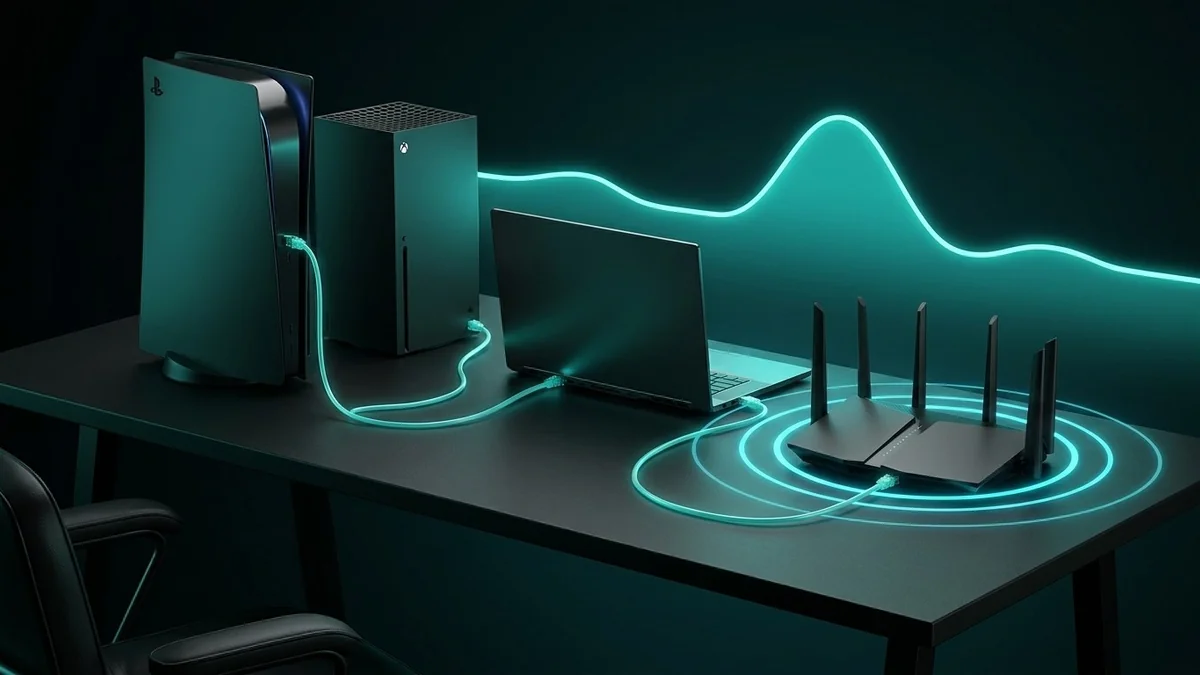
Want DDoS protection, faster 200GB+ downloads, and zero ISP throttling on PlayStation 5 or Xbox Series X? Follow our 3 proven 2026 methods to set up Surfshark WireGuard on consoles—with or without a VPN router.
Surfshark for PS5 & Xbox Series X (2026): Complete Low-Ping Setup Guide
Protect unlimited phones, PCs, Apple TV / Fire TV, and gaming routers with Surfshark WireGuard + CleanWeb + Antivirus at 2026 Black Friday checkout rates.
PlayStation 5 and Xbox Series X|S are powerhouse machines—yet neither Sony nor Microsoft allows native VPN apps in their console stores. That leaves millions of US console players exposed to targeted DDoS booters in GTA 6 Online and Call of Duty, stuck with 20 Mbps peak-hour ISP throttling on 200GB+ game downloads, and locked into Strict NAT behind cable or 5G CGNAT.
The good news: you do not need to buy an expensive $300 gaming router just to run Surfshark on your console. Depending on the gear already sitting in your room, you can protect your PS5 or Xbox in 5 minutes using a Windows PC or Mac Ethernet cable, configure a WireGuard router for permanent 24/7 protection, or use Surfshark Smart DNS strictly for streaming apps.
Below is the complete, no-fluff 2026 Surfshark console setup guide—including which method actually stops ISP throttling and DDoS attacks (and which one doesn't).
Shield Your PS5 & Xbox Tonight (Black Friday 2026 Deal)
One subscription covers your consoles, PC, phones, and smart TVs simultaneously with zero device caps. Claim Surfshark's Official Black Friday 2026 Offer ($2.49/mo + 3 Free Months)—backed by a 30-day money-back guarantee.
Which Surfshark Console Setup Method Should You Use?
Before touching cables or settings, pick the right setup for your goal:
| Setup Method | Extra Hardware Needed? | Stops DDoS & ISP Throttling? | Expected Speed & Ping | Best For |
|---|---|---|---|---|
| Method 1: Windows 11 / Mac Ethernet Sharing | 1 Cat6 Ethernet cable (you probably own one) | Yes (Full WireGuard Encryption) | 85%–93% Speed / +2 to +6 ms | Fastest free setup (5 minutes) — zero router changes |
| Method 2: WireGuard Gaming Router (Asus / GL.iNet / TP-Link) | WireGuard-capable router | Yes (Full 24/7 Encryption) | 400–900 Mbps / +2 to +6 ms | Best permanent setup — PC stays off, Policy Routing |
| Method 3: Surfshark Smart DNS | None (Console DNS settings only) | NO (Unencrypted!) | 100% ISP speed / No IP hiding | Strictly for unblocking US streaming apps on consoles—NOT for gaming DDoS or throttling |
Critical warning: Do not use Smart DNS if your goal is stopping Xfinity/Spectrum download throttling or preventing GTA 6 Online DDoS attacks. Smart DNS never encrypts your traffic or hides your home IP—use Method 1 or Method 2 below.
Method 1: Share Surfshark From a Windows 11 PC to PS5 or Xbox (5 Minutes, Free)
Prevent evening bandwidth shaping, DNS/WebRTC leaks, and phishing attacks across every household device (PC, PS5/Xbox routers, Smart TVs & phones) with 30-day money-back protection:
Disclosure: Partner affiliate link — we may earn a commission at no extra cost to you.
This is the quickest way to get full 10 Gbps WireGuard speeds on your console without buying a new router.
Step 1: Connect the Hardware
- Keep your Windows 11/10 PC or laptop connected to your home internet via Wi-Fi (5 GHz or 6 GHz recommended).
- Plug a Cat6 Ethernet cable from your PC's Ethernet port directly into the Ethernet port on the back of your PS5 or Xbox Series X|S.
Step 2: Configure Surfshark on Windows
- Open the Surfshark app, go to Settings > VPN Settings > Protocol, and lock it to WireGuard.
- Do not connect yet—enable sharing first so Windows binds the adapter cleanly.
Step 3: Enable Internet Connection Sharing (ICS)
- Press
Win + R, typencpa.cpl, and hit Enter to open Network Connections. - Locate the adapter labeled Surfshark WireGuard (or Surfshark Tunnel), right-click it, and select Properties.
- Click the Sharing tab and check "Allow other network users to connect through this computer's Internet connection."
- Under Home networking connection, select your PC's Ethernet port from the dropdown and click OK.
- Now open Surfshark and connect to your geographically closest US server (e.g., Ashburn, New York, Chicago, Dallas, Miami, or Los Angeles).
Step 4: Connect Your PS5 or Xbox
- On PS5: Go to Settings > Network > Settings > Set Up Internet Connection > Set Up Wired LAN > choose Easy (automatic IP and DNS). Run Test Internet Connection and confirm NAT Type 2 and strong download speeds.
- On Xbox Series X|S: Go to Settings > General > Network settings > Test network connection. Xbox automatically picks up the shared WireGuard tunnel.
Method 2: Share Surfshark From a Mac (macOS) to PS5 or Xbox
- Install Surfshark on your Mac, select WireGuard (or IKEv2 if macOS Internet Sharing prefers it—IKEv2 shares natively over macOS bridges), and connect your Mac to home Wi-Fi.
- Connect your Mac to your PS5/Xbox via an Ethernet cable (or USB-C to Ethernet adapter).
- Open System Settings > General > Sharing > Internet Sharing.
- Set "Share your connection from" to your active Surfshark/Wi-Fi interface and check "To computers using: Ethernet", then toggle Internet Sharing ON.
Method 3: Install Surfshark WireGuard on a Gaming Router (Best Permanent Solution)
If you don't want to leave a laptop turned on every time you play, running Surfshark directly on a WireGuard router (GL.iNet Flint 2, Asus RT-AX86U Pro / Wi-Fi 7, or TP-Link Archer) protects your PS5 and Xbox automatically 24/7:
- Log into
my.surfshark.com> VPN > Manual Setup > Router > WireGuard and download a.conffile for your nearest US hub. - Upload that
.conffile inside your router's WireGuard Client menu. - Enable Policy Routing so only your PS5/Xbox IP uses the encrypted tunnel while other devices stay direct (or encrypt your whole home).
- Set MTU to
1360on Starlink or1280on T-Mobile 5G Home Internet to avoid packet fragmentation.
(Want exact screenshots and brand-by-brand steps? Check our full Surfshark WireGuard Router Setup Guide.)
How to Verify Low Ping & DDoS Protection Before Playing
Never rely solely on Wi-Fi when diagnosing bandwidth throttling. Test your direct line, encrypt against ISP shaping, or upgrade to shielded Cat6A Ethernet:
Before jumping into a public GTA 6 Online or Warzone lobby, run a 30-second verification on DCSpeedTest.com:
- Test latency on our DCSpeedTest Gaming Ping Tool from your PC (or router-connected phone). Target ping under 45 ms, jitter under 5 ms, and 0% packet loss.
- Confirm your real residential IP is completely masked using our IP & Leak Scanner.
- Console Speed Bonus Tip: Remember to fully close suspended background games on PS5/Xbox whenever downloading 200GB+ patches—suspended titles cap download throughput by up to 70% even with a fast VPN.
Frequently Asked Questions (FAQ)
Will Surfshark give me Strict NAT on PS5 or Xbox?
Not if configured properly. Using WireGuard via Windows Ethernet sharing or a single router (with Double-NAT eliminated and UPnP enabled) normally keeps consoles on Moderate NAT (NAT Type 2)—smooth for matchmaking, heists, and party chat.
Can Sony or Microsoft ban my account for using Surfshark?
No. Encrypting your console traffic to stop DDoS attacks or bypass ISP download throttling is completely safe and allowed. Just avoid using foreign VPN locations to buy cheaper games from overseas PlayStation/Xbox storefronts.
Which US Surfshark server gives the lowest ping on PS5 and Xbox?
Pick the closest major US hub (New York or Ashburn for US-East, Chicago or Dallas for Central, Los Angeles or Seattle for US-West). Nearby 10 Gbps hubs add just +2 to +6 ms.
Play Without Lag Spikes or IP Booters Tonight
Get full WireGuard speeds, DDoS shielding, and unlimited devices across your PS5, Xbox, PC, and smart TVs. Lock in Surfshark One's Black Friday 2026 Deal ($2.49/mo + 3 Free Months) and benchmark your console connection live on DCSpeedTest.com.